DailyUploads Download Speed Test: Chrome and JDownloader 2
Our documented DailyUploads transfers showed 12.5 MB/s for one Premium Chrome download, approximately 20.6 MB/s combined for two parallel Chrome downloads, and a graph average of 33.18 MiB/s in JDownloader 2 with four downloads active.
This page explains what each screenshot shows and how to compare the results.
On this page
Results at a Glance
| Recorded Account Mode | Tool | Workload | Observed Speed |
|---|---|---|---|
| Free | Google Chrome | One file, 767 MB | 2.8 MB/s |
| Premium | Google Chrome | One file, approximately 1.1 GB | 12.5 MB/s |
| Premium | Google Chrome | Two files in parallel | Approximately 20.6 MB/s combined |
| Premium | JDownloader 2 | Four files in parallel | 33.18 MiB/s graph average; 31.91 MiB/s current |
Account modes follow the labels in the test records. The Chrome download panels do not independently display the account status.
Test Setup and How to Read the Results
These screenshots record individual file transfers from dailyuploads.net. They show download performance at the captured moments.
The tests cover:
- A Chrome download recorded as Free.
- One Premium Chrome download.
- Two parallel Premium Chrome downloads.
- Four Premium downloads in JDownloader 2.
Chrome displays speeds as MB/s, while JDownloader 2 displays MiB/s. We preserve the labels and values shown in each application.
Single-file speed and combined throughput are different measurements. For the two-file Chrome test, the combined figure is the sum of both visible download rates. For JDownloader 2, we report the average and current values displayed in its speed graph.
The captures are not repeated, controlled benchmarks. File servers, routing, local network conditions and workload differences can affect the results.
Free Download Test
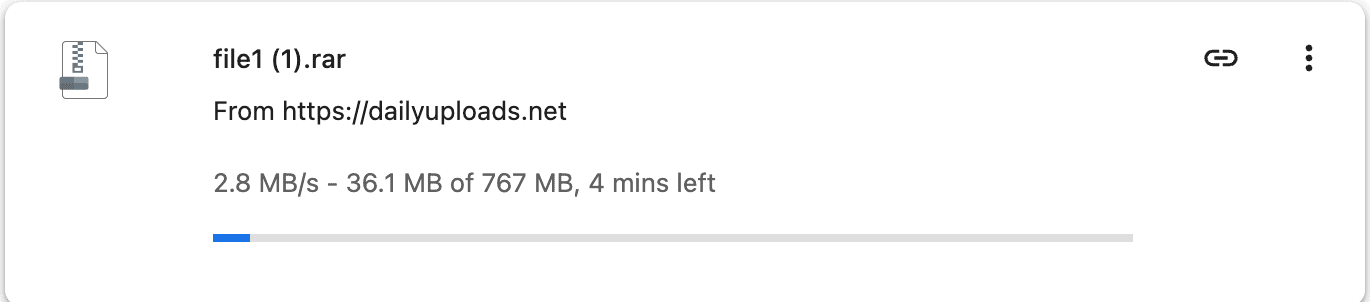
Chrome showed a 767 MB file downloading at 2.8 MB/s, with 36.1 MB transferred and approximately four minutes remaining.
The test record identifies this capture as Free, but the download panel itself does not show account details.
Treat 2.8 MB/s as the observed rate for this transfer. It does not establish a fixed free download speed or guarantee that other free downloads will perform similarly.
Premium: One Chrome Download
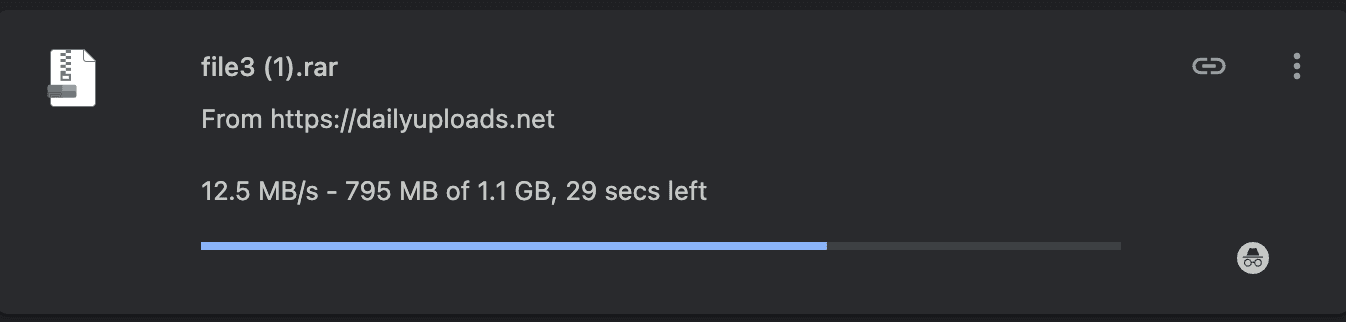
The single-file Premium capture showed an approximately 1.1 GB file downloading at 12.5 MB/s, with 795 MB downloaded and 29 seconds remaining.
This provides a useful example of one browser download. The figure is an observed speed, not a demonstrated account limit or maximum speed.
Premium: Two Parallel Chrome Downloads
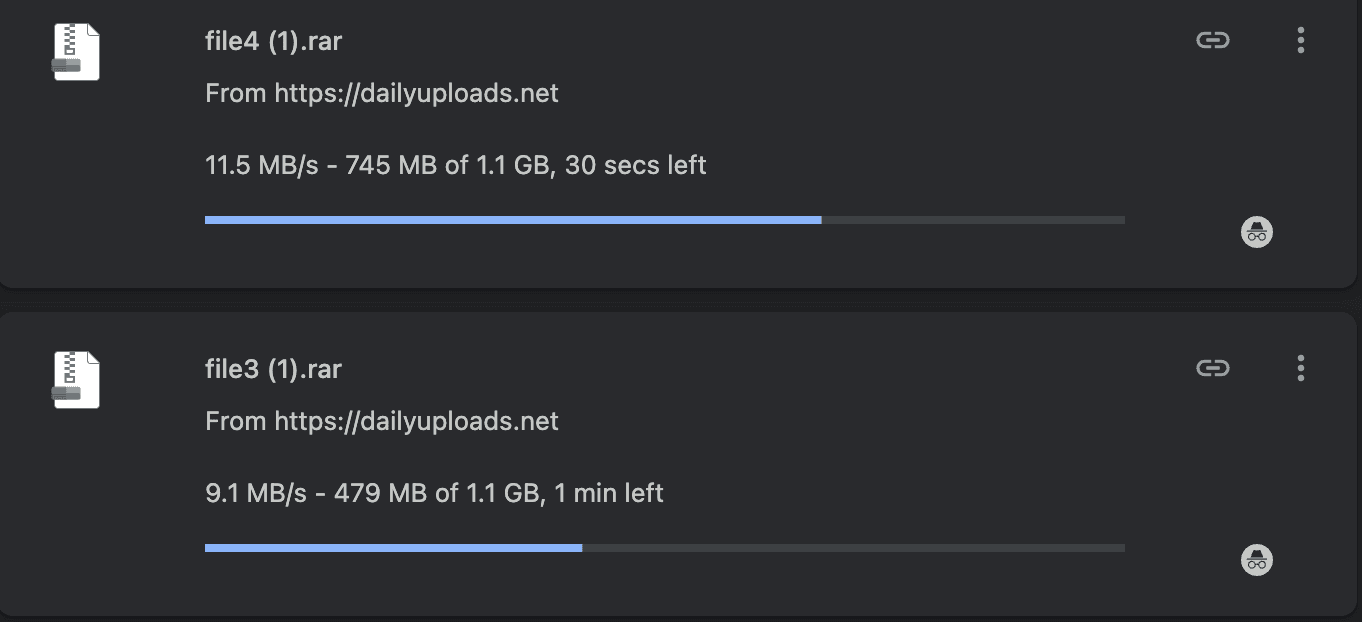
Two Chrome downloads were active at the same time:
| Download | Visible Speed |
|---|---|
| File 1 | 11.5 MB/s |
| File 2 | 9.1 MB/s |
| Combined | Approximately 20.6 MB/s |
The two-file capture showed higher combined throughput than the single-file capture. Different files and transfer conditions may also have contributed to the difference.
The combined 20.6 MB/s figure describes both transfers together, not the speed of either individual file.
Premium in JDownloader 2
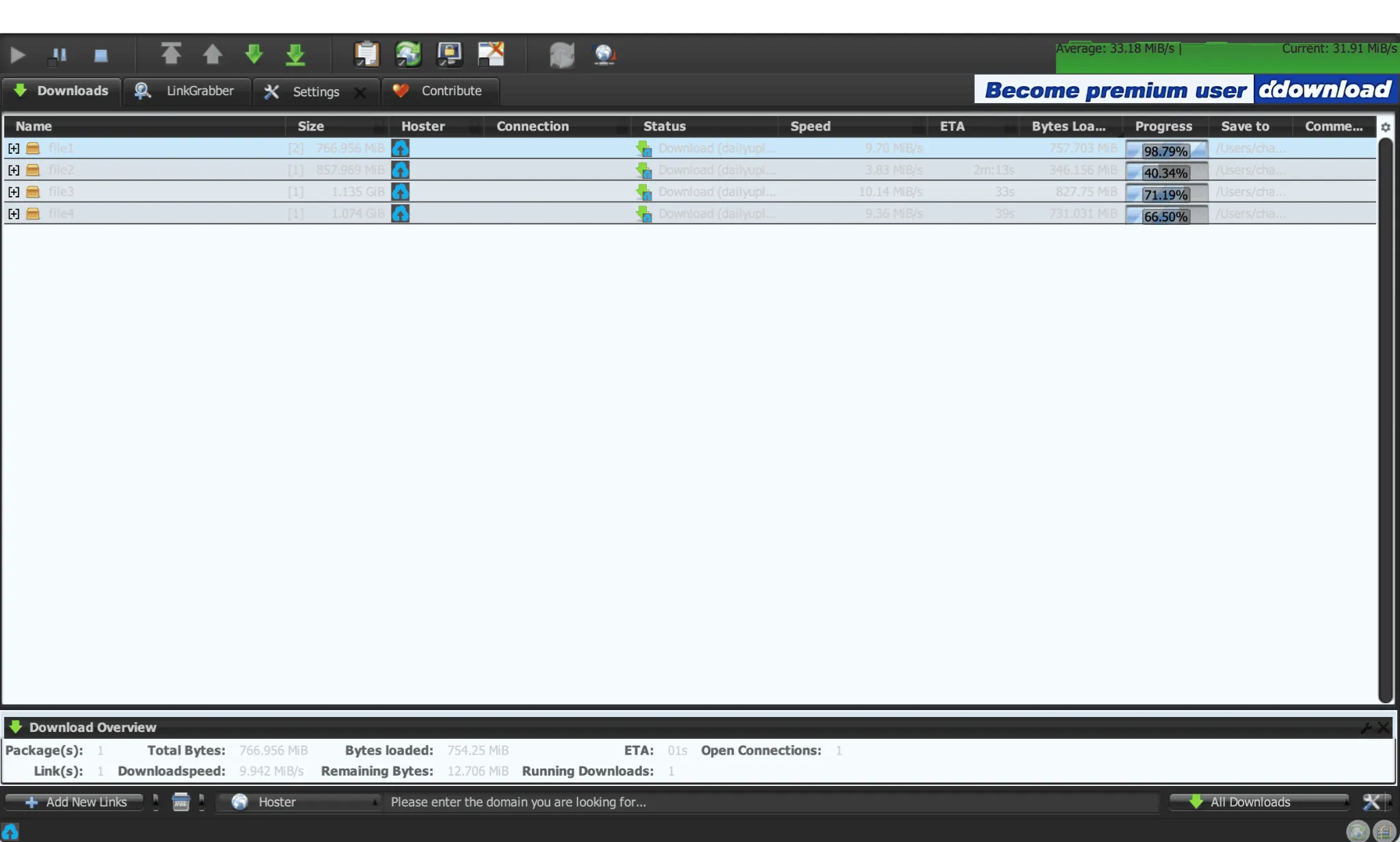
JDownloader 2 displayed the following values in its speed graph while four downloads were active:
- Average: 33.18 MiB/s
- Current: 31.91 MiB/s
The average is the value shown by the software, not an average calculated from repeated tests.
The four visible file rates ranged from 3.83 to 10.14 MiB/s. This capture demonstrates that multiple DailyUploads downloads worked in JDownloader 2 during the documented Premium test.
It does not establish a fixed maximum speed, an optimal connection setting or support for every download-manager feature.
What the Results Mean
The captures labeled as Premium showed higher observed throughput than the capture labeled as Free.
The parallel Chrome capture also showed higher combined throughput than the single Premium Chrome capture. JDownloader 2 displayed a higher aggregate figure with four files active, although its MiB/s values should not be treated as identical units to Chrome’s MB/s figures.
These results suggest that parallel downloads can make better use of available bandwidth. However, the files and transfer conditions differed, so they do not prove that concurrency alone caused the improvement.
For readers downloading several archives, combined throughput may be more relevant than the speed of one file. For a single download, the one-file Chrome capture is the closer comparison.
If Your Download Is Slower
Check Account Recognition
Confirm that your browser session or JDownloader 2 recognizes the account as Premium. In JD2, check Account Manager before starting the queue.
Try Another File
Test a different DailyUploads file. A slow transfer may be specific to a file or server rather than your entire account.
Adjust Parallel Downloads
Start with two or three simultaneous downloads. Increase gradually if total throughput improves. Excessive connections can reduce stability without increasing speed.
Compare Different Times
Try another time of day and check whether other devices or applications are using your connection. This can help separate local congestion from conditions along the route to DailyUploads.
Conclusion
The documented Premium captures showed higher speeds than the capture recorded as Free. Parallel Chrome downloads and JDownloader 2 also showed higher combined throughput than the single Premium browser download.
These figures describe the captured transfers. Performance on your connection may differ.
For plan prices, features and buying guidance, see our DailyUploads Premium Guide.